|
How to Burn MP3, FLAC, APE, WMA, WAV, OGG to CD? You are here: Help > How to Burn MP3, FLAC, APE, WMA, WAV, OGG to CD? |

|
||||
|
Copyright 2005-2024 Power Software Ltd. All rights reserved. |
|
How to Burn MP3, FLAC, APE, WMA, WAV, OGG to CD? You are here: Help > How to Burn MP3, FLAC, APE, WMA, WAV, OGG to CD? |
|
||||
|
Copyright 2005-2024 Power Software Ltd. All rights reserved. |
 icon
and navigate to the audio project / image file you would like to open.
icon
and navigate to the audio project / image file you would like to open.
 icon
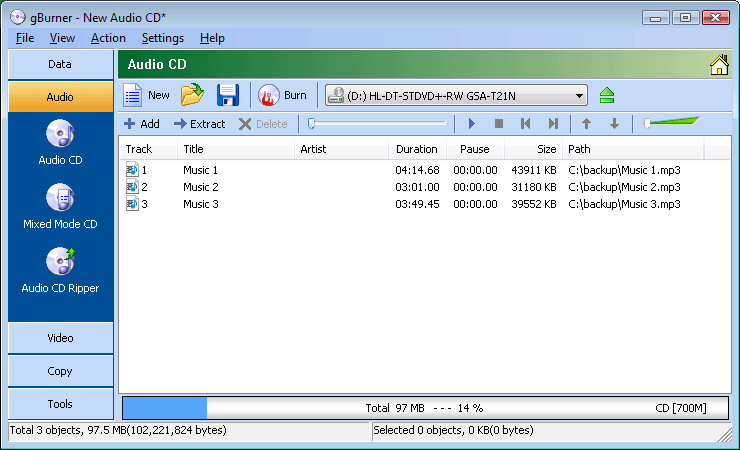
to add music files (MP3, WMA, WAV, FLAC,
APE and OGG formats). You can also directly
drag music files from Windows Explorer to the project window.
icon
to add music files (MP3, WMA, WAV, FLAC,
APE and OGG formats). You can also directly
drag music files from Windows Explorer to the project window. icon.
icon. and
and  icons to change the selected song position.
 icon.
icon. icon, the
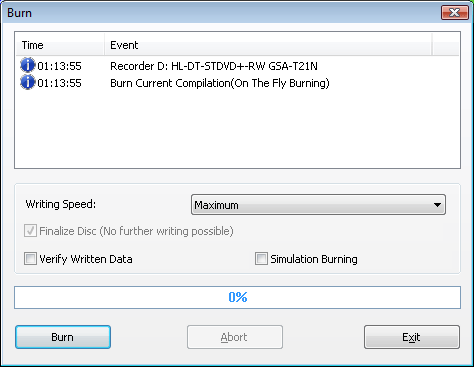
burn dialog opens, where you can select or check the required burn
options and then click on the "Burn" button to
start the actual burn process.
icon, the
burn dialog opens, where you can select or check the required burn
options and then click on the "Burn" button to
start the actual burn process.