|
Make Bootable ISO Image File You are here: Help > Make Bootable ISO Image File |

|
||||
|
Copyright 2005-2024 Power Software Ltd. All rights reserved. |
|
Make Bootable ISO Image File You are here: Help > Make Bootable ISO Image File |
|
||||
|
Copyright 2005-2024 Power Software Ltd. All rights reserved. |
 icon
to open an existing data project / image file.
icon
to open an existing data project / image file. icon
to add files and folders. You can also directly drag files and folders from
Windows Explorer to the project window.
icon
to add files and folders. You can also directly drag files and folders from
Windows Explorer to the project window. icon
to create a new folder.
icon
to create a new folder. icon.
icon.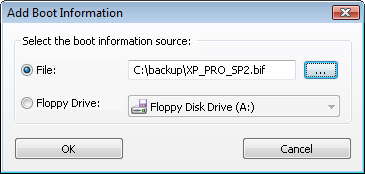
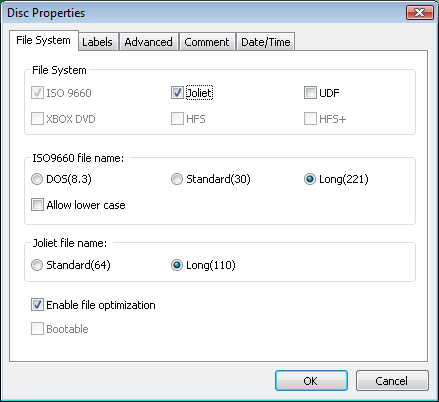
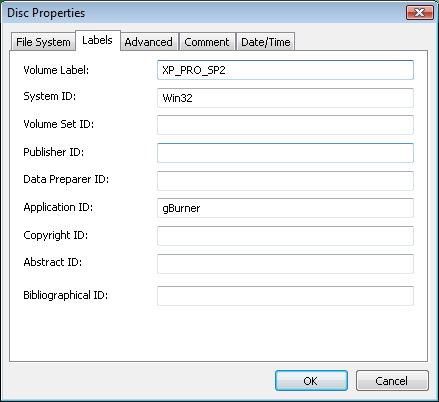
 icon to set iso properties.